Here's a step by step tutorial about how to create a web oauth2 app in Google dashboard.
- Go to https://console.developers.google.com/apis/dashboard and create a new app
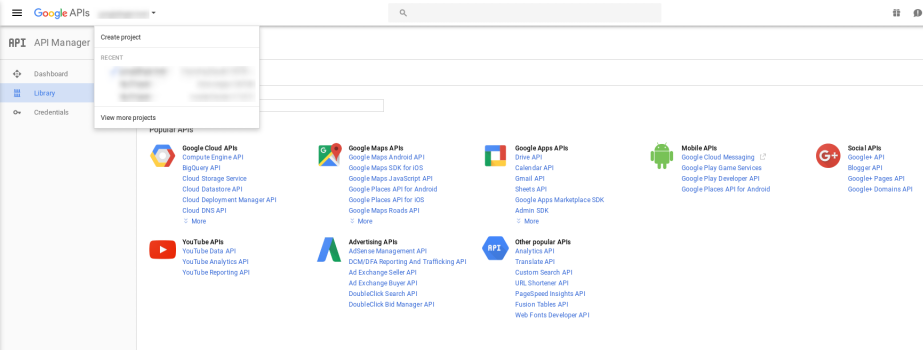
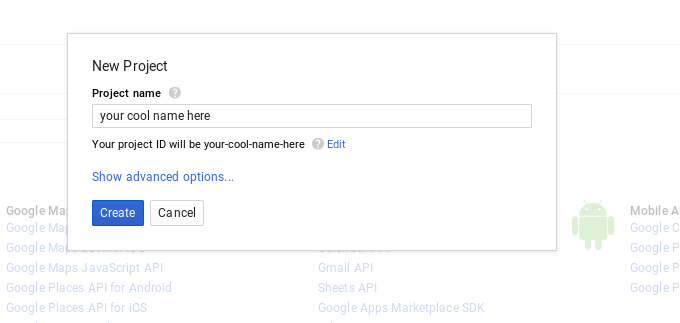
- Add some cool name for your new Google app project and click "Create"
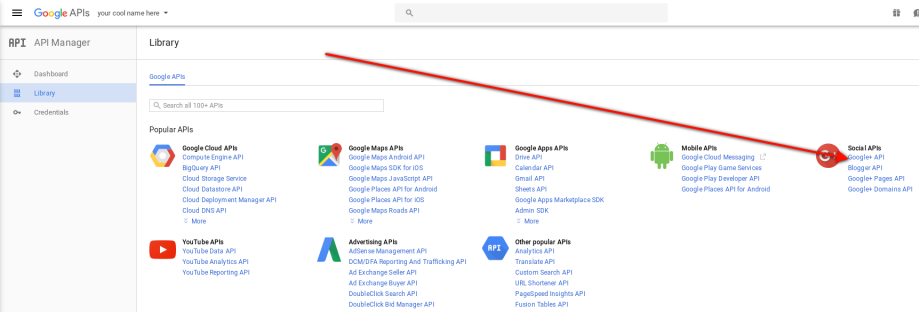
- Under "Library" section, create a new Google+ API project
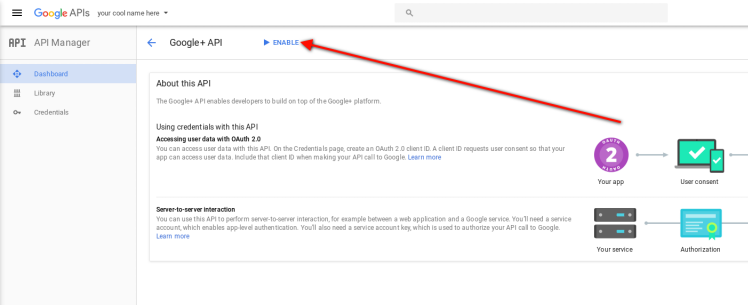
- Click "Enable" in the dashboard tab
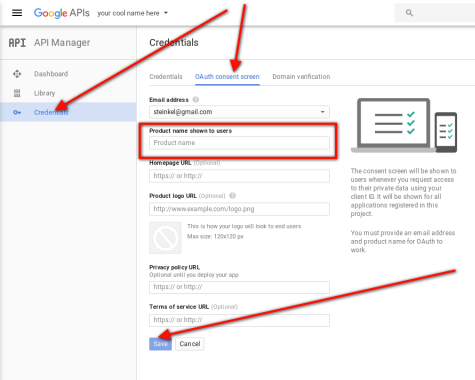
- Under "Credentials" menu, click "Oauth consent screen" tab and enter some cool name to be displayed to users when requesting their access to your application. Then click "Save".
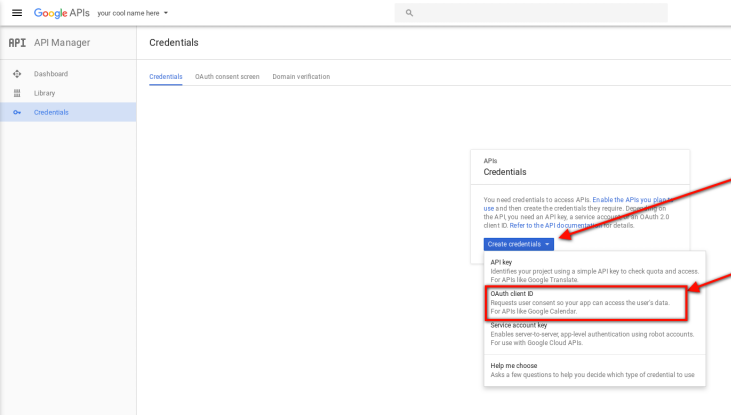
- Under "Credentials" menu, click "Create credentials" and select "Oauth client ID".
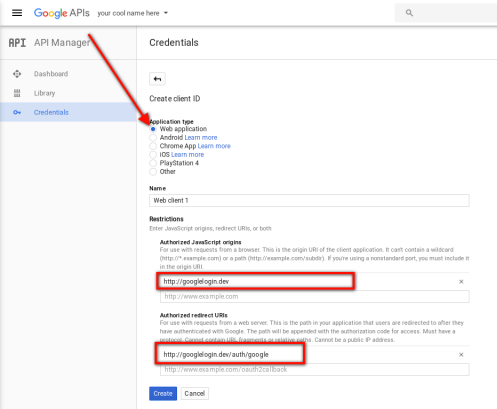
- Now click "Web application" radio, and type your domain name and oauth callback
- Under "Authorized Javascript origins", add your domain name: mydomain.com
- Under "Authorized redirect URIs", add all the allowed callback url's to your application. For example if you are using CakeDC/Users Plugin, you'll need to add mydomain.com/auth/google
- Then click "Save"
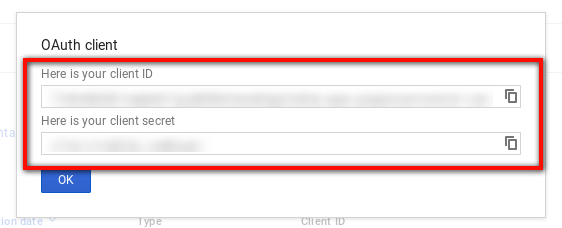
- Copy the Iauth client and secret id's into your application configuration
- Be careful, some browsers will append blank spaces to the codes, remove any extra blank space (trim)
- Ensure the API is enabled, you can test your application now and check there is "Traffic" displayed
You have now a Google app configured to provide Oauth2 login to your web application. Enjoy!
Need help with this in your own CakePHP app?
Talk to a CakePHP expertGet the CakeDC newsletter
One email a month: releases, security advisories and one article worth reading.
